Email (SMTP) Setup
- To enable email notifications in the system, first an SMTP server must be added. If no SMTP server is added, users will not receive notifications about upcoming bookings, cancellations, or check-in reminders. Guests will not receive instruction emails letting them know how to get on site. Administrators will not receive any reports that are configured to automatically send via email.
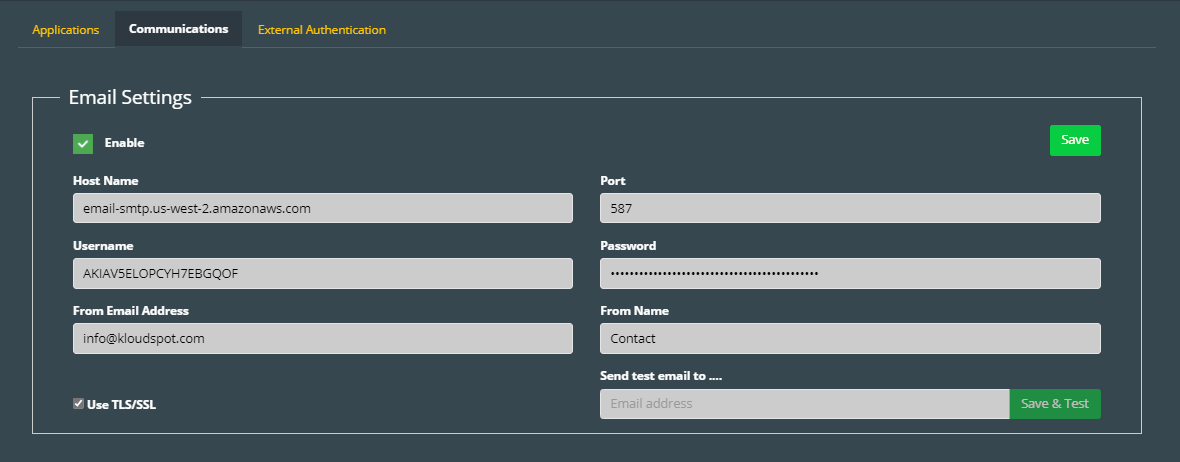
- Navigate to the Advanced Settings page, then to Configuration -> Integrations -> Communications. Check the enable check box under Email settings as seen in the figure below.
- Obtain the provider’s Host Name, Port, Username, and Password from the SMTP server you are using and enter them in the associated fields below.
- Then type “from email” and “from the name” into the appropriate fields. This will be the email address & from the name users see emails coming from when they receive notifications.
- Check TLS/SSL if your SMTP server is configured to use these protocols.
- Enter your email address into the “Send a test email to ….” Field, and click Save & Test. You should receive an email from the system. If not, check to make sure the values entered in steps 2 – 4 are correct.